
08b — The Navigation page
13 fields in four tabs. Which navigation is used, how it behaves, how large it is and what else lives in the bar.
Until now this was split in two: the heights and rounding sat on the Layout page, the variant and the switches on the Config page — and both tabs were called Navigation. They were not independent, either: the switch that lets the header shrink was on one page, the height it shrinks to on the other. They are one page now.
The logo is the exception and stays on 08 — Layout, in the Logo tab: a logo is a logo whether it sits in the navigation, the footer or a search result.
Tab: Variants (3 fields)
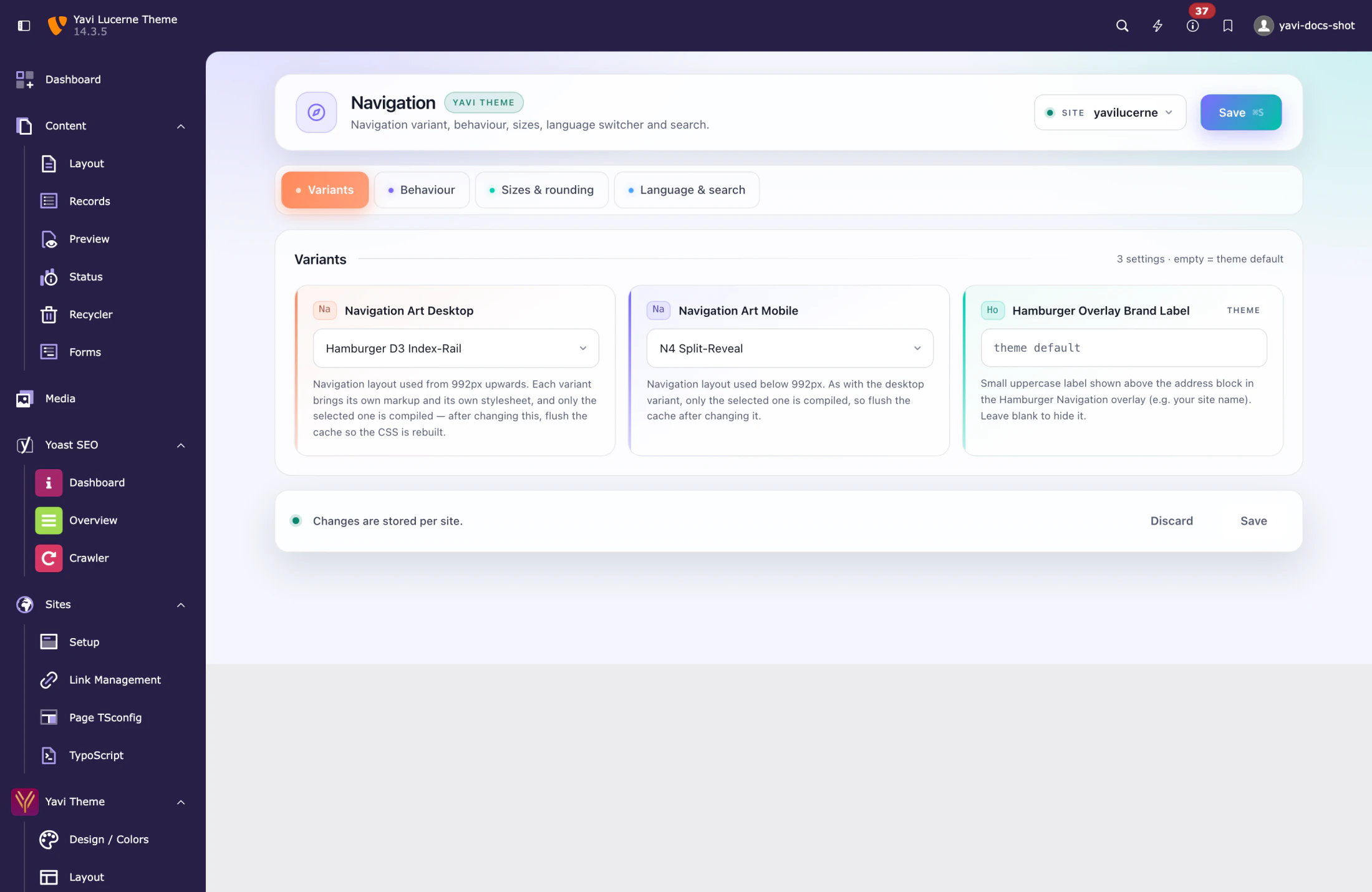
| Field | Meaning |
|---|---|
| Navigation Art Desktop | Which desktop navigation is used, from 992px upwards |
| Navigation Art Mobile | Which mobile navigation is used, below 992px |
| Hamburger Overlay Brand Label | Small uppercase label above the address block in the hamburger overlay. Blank hides it. |
Desktop:
| Value | Character |
|---|---|
MainNavigation | The default: classic bar with dropdowns and mega menu |
SplitedNavigation | Menu split left and right of a centred logo |
HamburgerNavigation | Hamburger only, full-screen overlay |
HamburgerD2 | Hamburger, typographic stage |
HamburgerD3 | Hamburger, index rail |
Mobile:
| Value | Character |
|---|---|
BottomSheetNavigation | The default: sheet sliding up from the bottom |
OrbitFabNavigation | Floating action button with an orbit of entries |
NavigationN4 | Split reveal |
Details on what each one does in the front end are in 14 — Navigation.
Tab: Behaviour (3 fields)
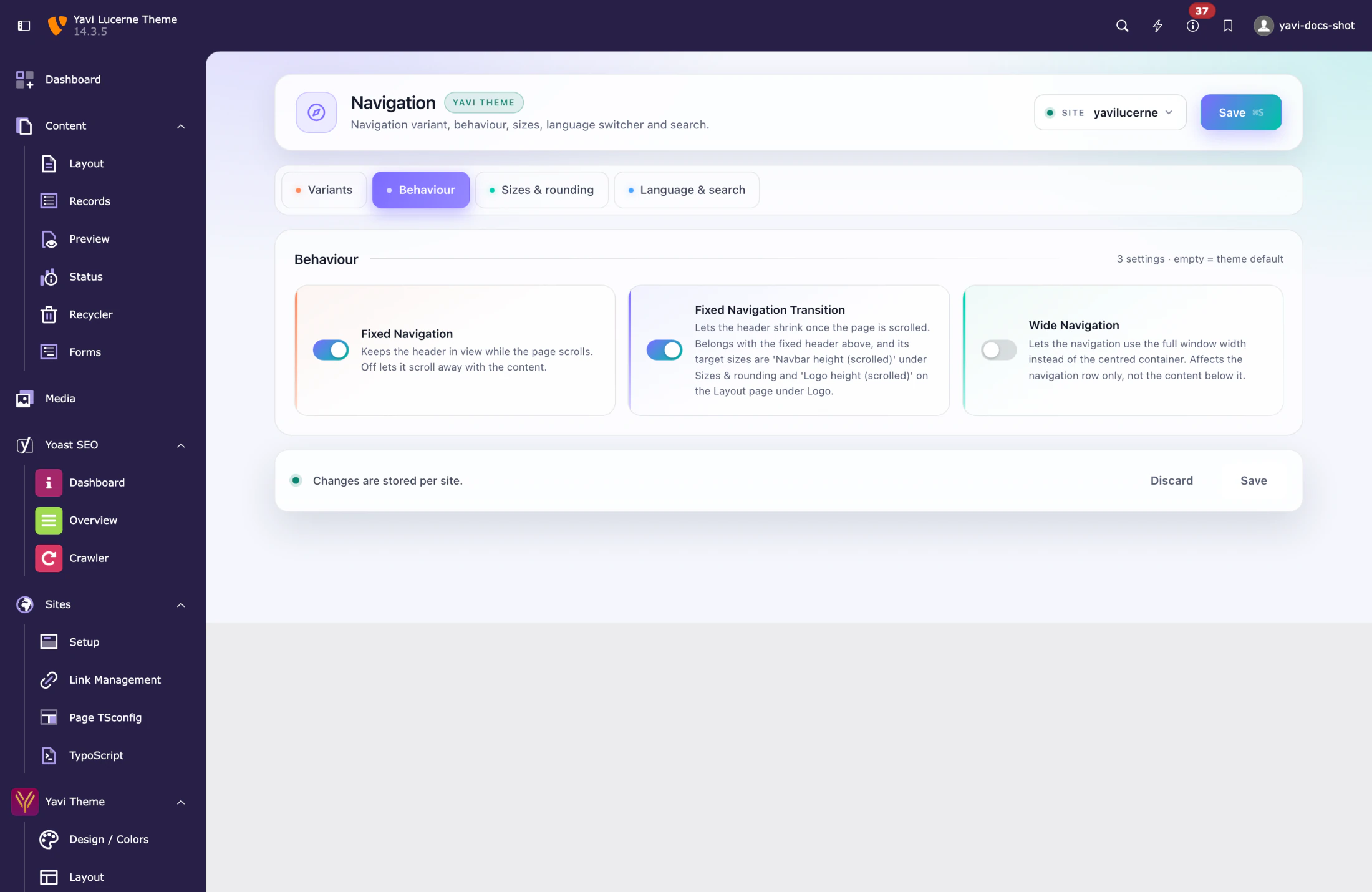
| Field | Meaning |
|---|---|
| Fixed Navigation | The header stays in view while the page scrolls. Default on. |
| Fixed Navigation Transition | The header shrinks once the page is scrolled. Belongs with the fixed header. |
| Wide Navigation | The navigation uses the full window width instead of the centred container. Affects the navigation row only. |
Fixed Navigation Transition is the switch, not the size. What the header shrinks to is Navbar height (scrolled) on the next tab, and what the logo shrinks to is Logo height (scrolled) on the Layout page under Logo. With the switch off, both of those fields do nothing.
Tab: Sizes & rounding (4 fields)
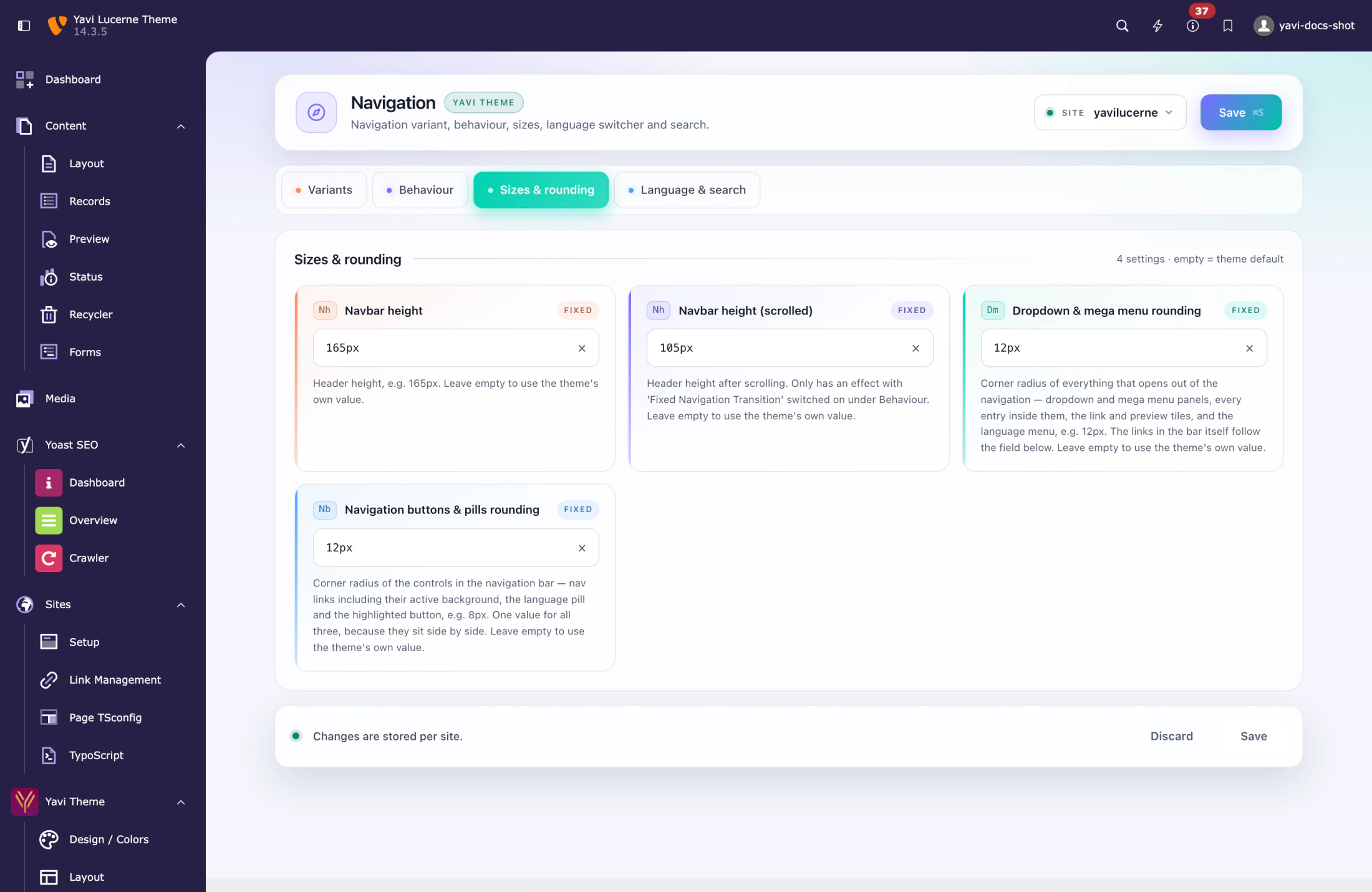
| Field | Meaning |
|---|---|
| Navbar height | Header height at the top of the page, e.g. 165px |
| Navbar height (scrolled) | Header height after scrolling — the shrunken state |
| Dropdown & mega menu rounding | Corner radius of everything that opens out of the navigation: dropdown and mega menu panels, every entry inside them, the link and preview tiles, and the language menu |
| Navigation buttons & pills rounding | Corner radius of the controls in the bar: nav links including their active background, the language pill and the highlighted button |
The two rounding fields split the navigation along a line that is easy to remember: in the bar → buttons field, in the opened menu → menu field. Both take a length (12px); a bare number is read as pixels.
Tab: Language & search (3 fields)
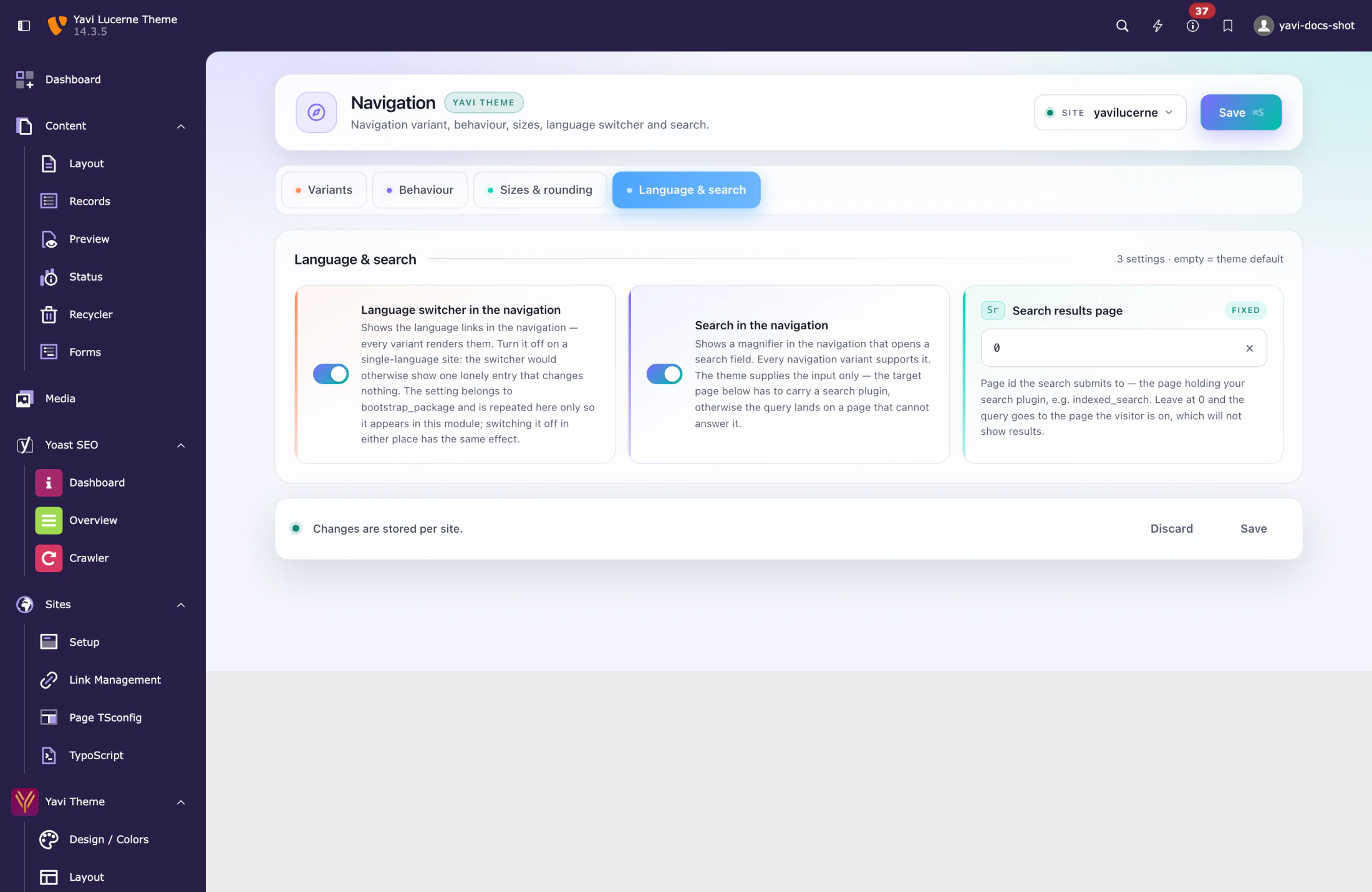
| Field | Meaning |
|---|---|
| Language switcher in the navigation | Shows the language links. Every variant renders them. |
| Search in the navigation | Shows a magnifier that opens a search field |
| Search results page | Page id the search submits to |
Turn the language switcher off on a single-language site — it would otherwise show one lonely entry that changes nothing. The setting belongs to Bootstrap Package and is repeated here only so that it appears in this module; switching it off in either place has the same effect.
The theme provides the search interface, not the search engine. The form submits by GET to the page you set as Search results page, and that page needs a search plugin (Indexed Search, Solr, …). Without a target page the request goes to the current page — which is the quietest possible failure: no 404, no exception, just no results. Set the page.
Every field is listed with its setting key in the settings reference.